
How to Actually Get Value from Claude Code
A Practical Guide for Developers Who Want More Than Basic Autocomplete
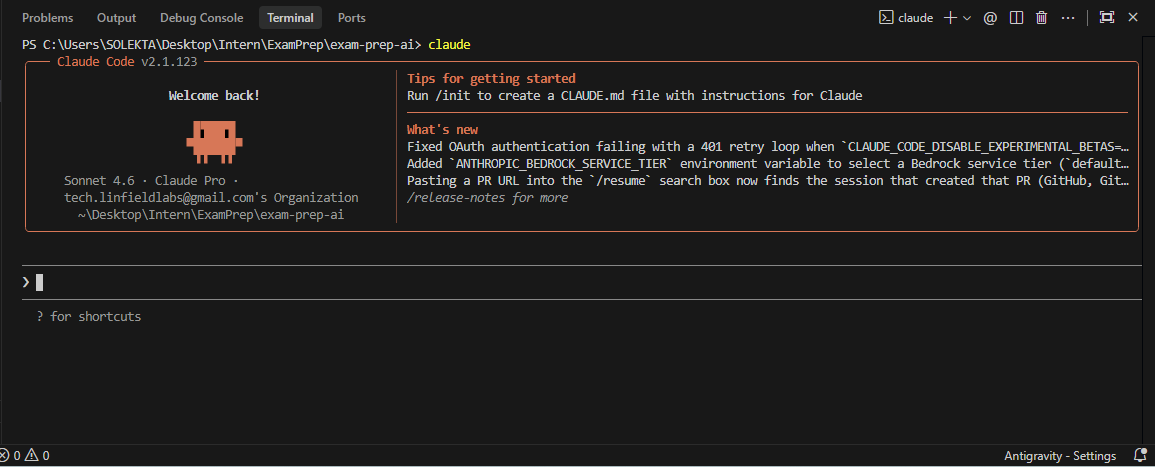
Scalable AI development relies on engineering comprehensive systems, not individual prompts. By prioritizing automated workflows, developers can manage complex repositories with zero manual intervention for testing and validation.
The Real Problem With Most Claude Code Usage
Here's a pattern you've probably seen (or lived):
Developer: "Add this feature"
Claude: [writes 150 lines of code]
Developer: manually runs it
Developer: it breaks
Developer: "why did you do it this way?"
Claude: [explains, rewrites]
Developer: manually tests again
...repeat 5 times
Every cycle costs time and tokens. The root cause? You're treating Claude like a vending machine instead of a developer. You put in a prompt, you expect finished code, you get frustrated when it's wrong.
The fix is a workflow shift, not a better prompt.
Part 1: The One File That Changes Everything
Why CLAUDE.md Is Your Secret Weapon
Claude reads one file every single time you start a session: CLAUDE.md at your project root.
This is your project's constitution. It tells Claude:
- What the project actually is
- How to build and test it
- What patterns to follow
- What to never do
Without it, Claude makes assumptions. With it, Claude behaves like someone who's been on your team for months.
How to Create Your First CLAUDE.md
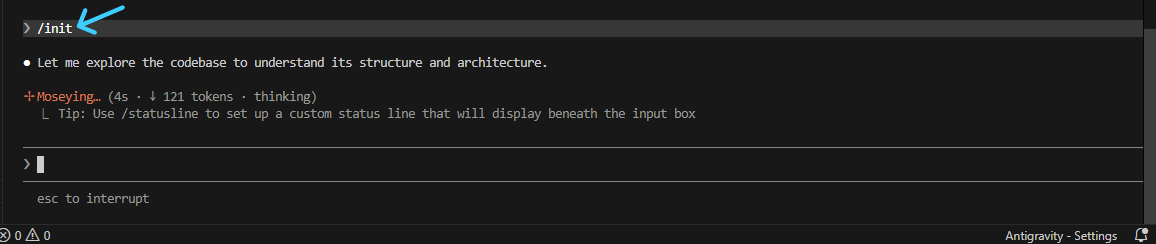
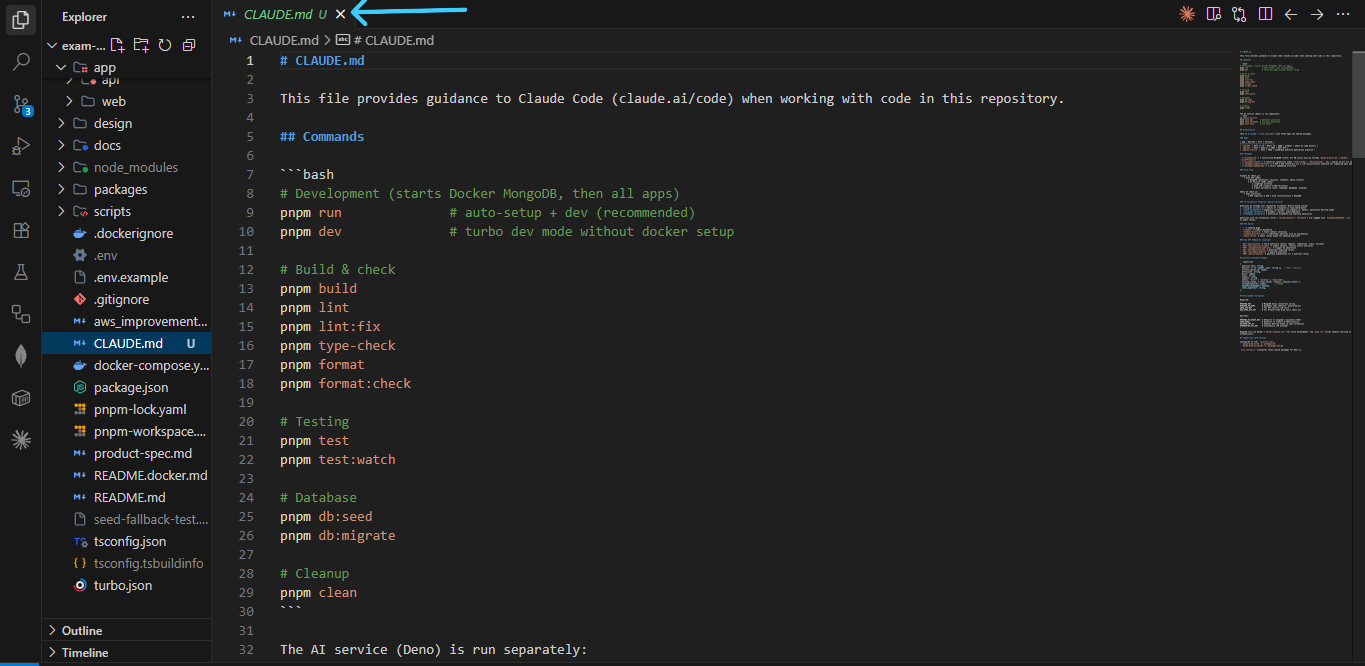
/initRun this inside Claude Code on any project. Claude reads your codebase, understands the structure, and generates a starter CLAUDE.md. Then refine it over time as you discover what Claude keeps getting wrong.
Below is the CLAUDE.md used for ExamPrep AI:
The Three Rules for a Good CLAUDE.md
Rule 1: Keep it under 300 lines.
Every line in CLAUDE.md gets loaded into context on every request. A 1,000-line CLAUDE.md is just burning tokens.
Rule 2: Be specific, not philosophical.
“Write clean, maintainable code” → “Never import mongoose directly — always use @exam-prep-ai/db”
Claude can't act on vibes. It can act on constraints.
Rule 3: Never edit it manually.
Just tell Claude what went wrong:
“You imported mongoose directly again. Add a rule to CLAUDE.md banning direct mongoose imports — always use @exam-prep-ai/db.”
Claude updates the file. The rule sticks for every future session.
Part 2: Stop Letting Claude Drive Straight Into Production
The Mode Nobody Uses by Default
Press Shift+Tab in Claude Code. You just entered Plan Mode.
In Plan Mode, Claude reads, thinks, and plans. It will not touch a single file. This is the most important mode in Claude Code, and most developers never use it.
Consider the case of adding a new “diagram-based” question type to the ExamPrep AI classification pipeline. Without Plan Mode:
Me: "Add diagram question support to the classifier"
Claude: [starts editing ai-service/classifier.ts]
        [adds the new type]
        [...but forgets to update packages/shared/types.ts]
        [...and doesn't update the MongoDB schema]
        [...and the 4-gate validation now fails silently]
Three files broken. Two of them I didn't even realize would be affected.
With Plan Mode:
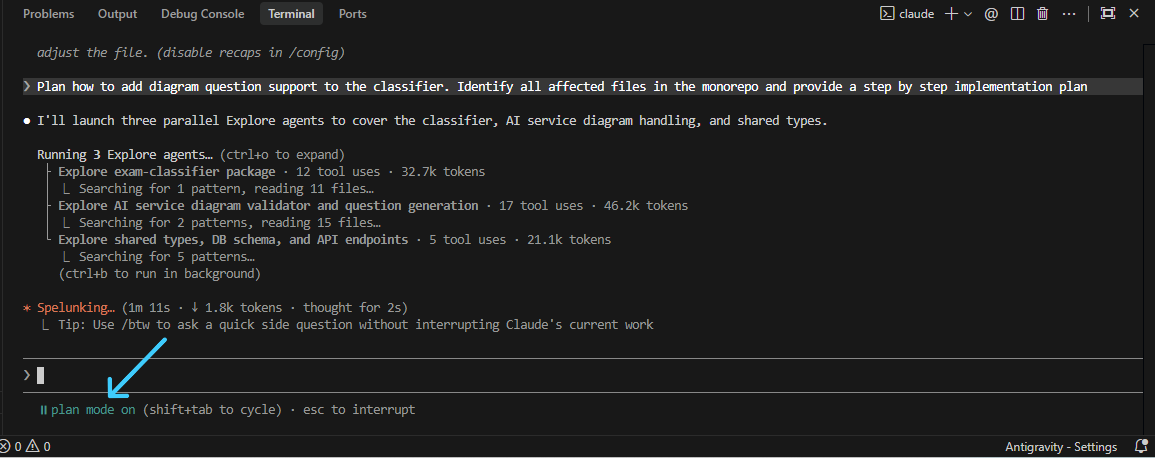
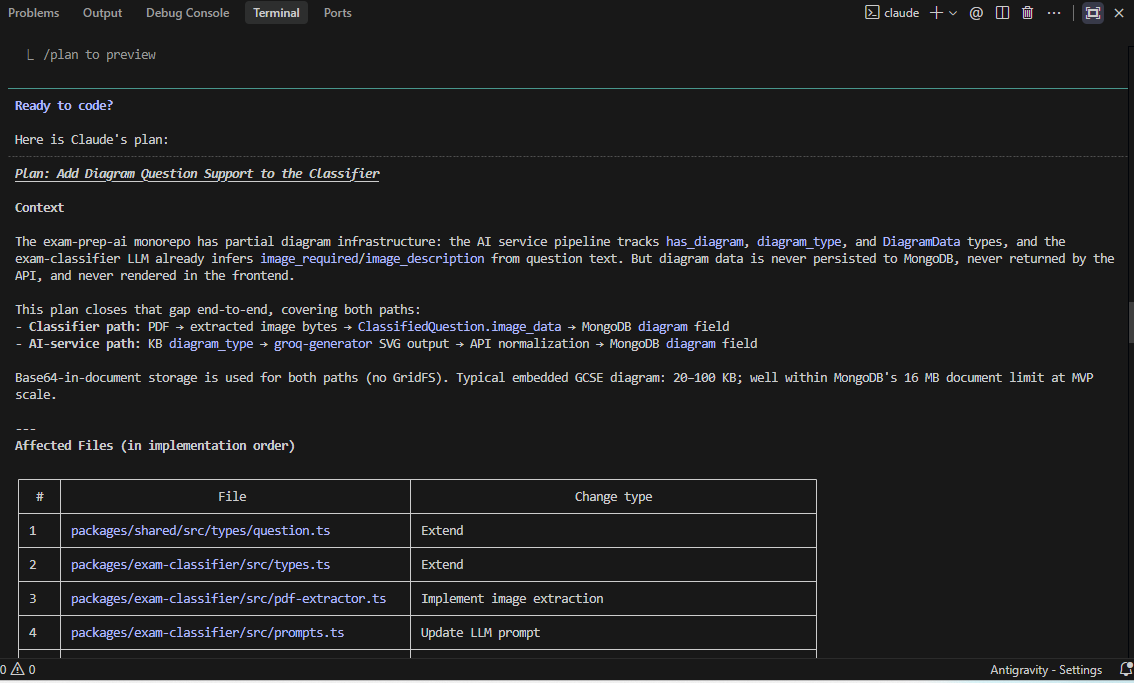
Argue With Claude During Planning (It's Free)
The planning phase costs almost no tokens compared to code generation. Use it.
“Why use Base64 for images instead of GridFS? Won't that make the database slow once we have thousands of questions?”
“You have two different ways of adding diagrams. How do we make sure the diagram data looks exactly the same in both?”
Push back. Claude responds well to it. Get the design right before the code is written, because refactoring 150 lines of generated code costs far more than 5 minutes of planning.
When you're satisfied with the plan, press Shift+Tab again to cycle back to a mode that allows edits (default or acceptEdits). Now Claude executes exactly what was agreed.
Part 3: The Validation Loop — The Thing Nobody Does
Why Your AI Workflow Keeps Failing
Here's the brutal truth: if you're manually testing every piece of code Claude Code writes, you've automated the hard part and kept the tedious part for yourself.
Most developers:
- Ask Claude to write code
- Manually run it
- Copy-paste the error back
- Ask Claude to fix it
- Repeat
That's not AI-assisted development. That's AI-generated code with human-powered QA.
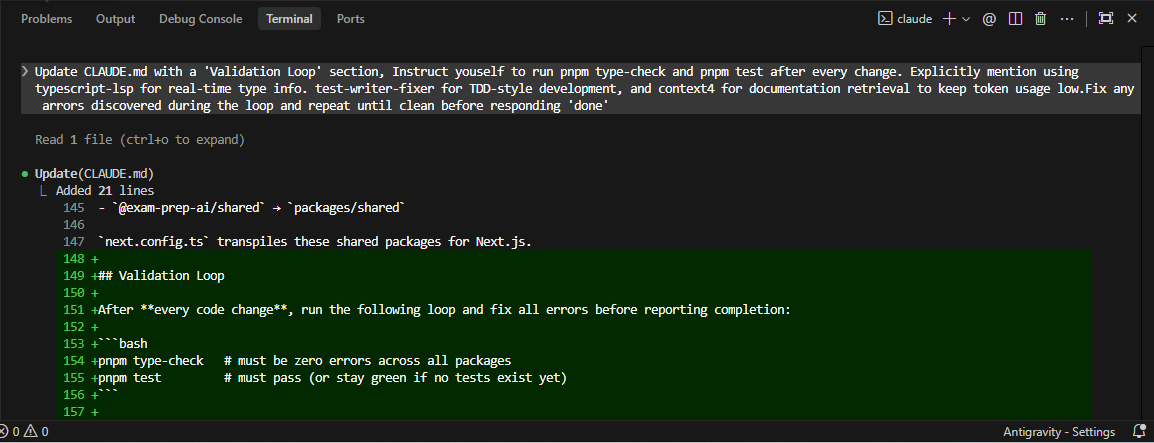
The Fix: Put the Feedback Loop Inside Claude
Instead of adding rules manually, use Rule 3 and tell Claude to upgrade its own constitution.
Consider the process of adding a difficulty-scoring function:
Plugins That Power This Loop
Plugin Selection: We utilize a core set of plugins: (typescript-lsp, test-writer-fixer) and (context7) to streamline and supercharge the validation loop.
typescript-lsp — Instead of loading full files into context, this plugin gives Claude live TypeScript language server access. It knows types, imports, and usages inline. Type errors get caught before they ever hit the test runner.
test-writer-fixer — When you ask Claude to implement a feature, this plugin makes it write the tests first (or alongside), then run them, then fix failures. The entire red-green-refactor cycle happens automatically.
context7 — This one is subtle but powerful. Instead of Claude saying “I think the Next.js 15 API is like this…”, context7 fetches the actual current documentation on demand. No hallucinated APIs. And crucially, it doesn't permanently add those docs to your context—it fetches them only when needed, keeping tokens low.
These three cost very little per request and pay back enormously in reduced back-and-forth.
Pro Tip: Autonomous Debugging
For runtime crashes, don't just ask for a fix. Ask Claude to investigate:
“The classifier crashes on Q12 of this PDF. Add logging, run the reproduction script, analyze the output, and fix the root cause.”
Claude adds logs, runs the code, catches the edge case (like a LaTeX parsing error), and patches it—all in one go. You provide the symptom; Claude handles the entire investigation.
Part 4: Managing Context Like a Pro
The Hidden Tax on Every Request
Every Claude request loads more than just your prompt. It loads:
- Your
CLAUDE.md - Every file you have open
- Every MCP server you've installed
- The full conversation history
That's your context window—and it has a cost. The bigger it is, the more tokens each request burns.
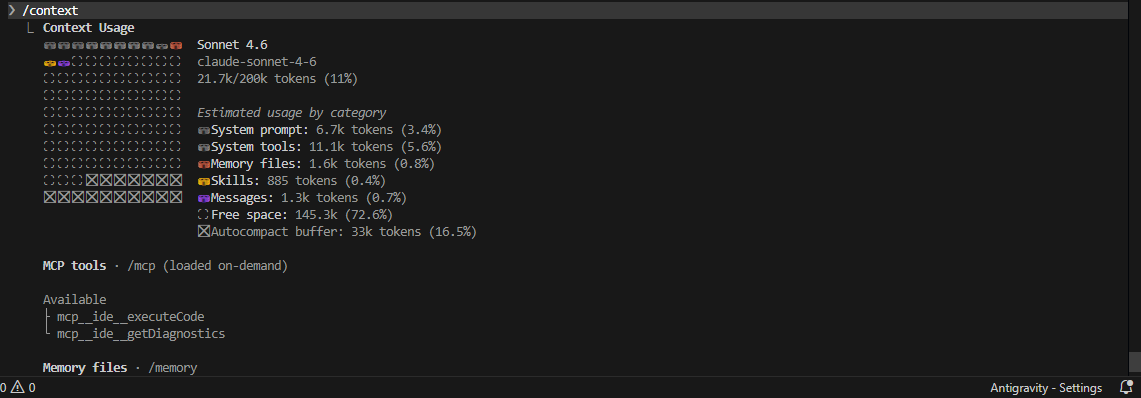
Run this right now in any Claude session:
/context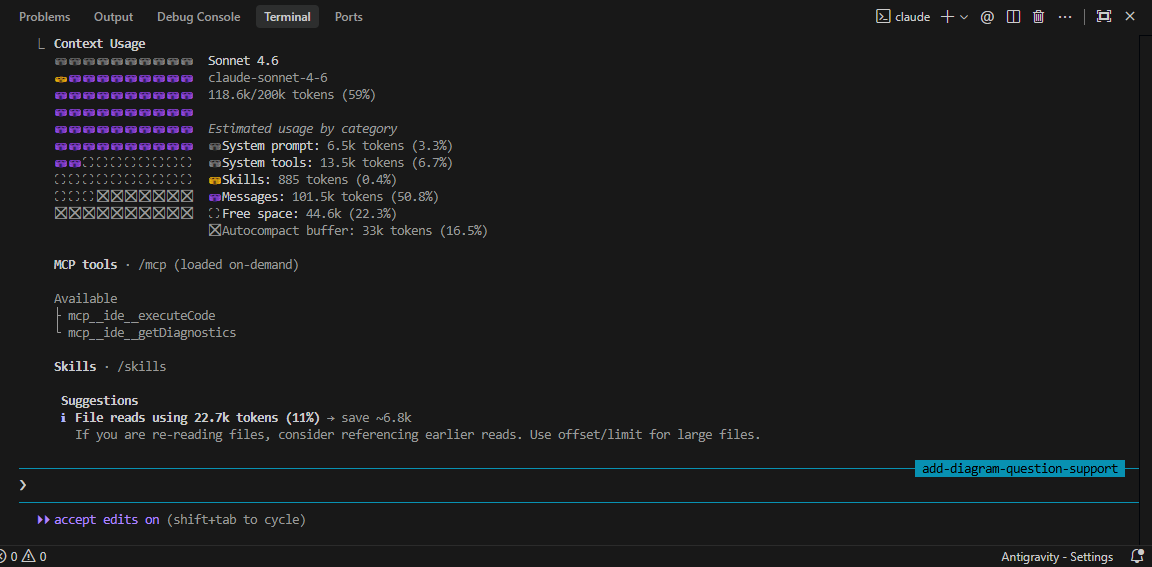
Wait—101.5k tokens in conversation history alone? That's more than half your context window filled with previous messages. Every request is loading this entire conversation, and you're paying for it. The suggestion at the bottom even tells you file reads are using 22.7k tokens unnecessarily. This is exactly why /clear between tasks is critical—that 101.5k drops to near-zero instantly.
Three Things to Do Right Now
1. Audit your MCPs.
/mcpThis shows every active MCP. Remove anything you didn't intentionally install for this project. Each MCP loads its full instruction set into every request.
2. Be selective about which files you open.
Claude keeps referenced files in context. Only mention or open files that are directly relevant to what you're working on right now. If you opened classifier.ts to look at something but you're now working on the API, start a fresh session with /clear rather than carrying that file weight forward.
3. Start fresh sessions between unrelated tasks.
/clearThis wipes the conversation history from context. When you switch from “fixing the AI pipeline” to “styling the student dashboard,” start clean. The conversation history from the pipeline work is deadweight.
The context7 Advantage
Most developers handle library questions like this:
- Find the Next.js 15 docs page
- Copy the relevant section
- Paste it into the Claude chat
- Ask the question
That's 300–500 tokens of documentation you just permanently added to your conversation history. And it stays there for every subsequent message.
With the context7 plugin, Claude fetches docs on demand and drops them when done. Same knowledge, a fraction of the context footprint.
Part 5: Parallel Development — Running Multiple Claudes
The Most Underused Feature
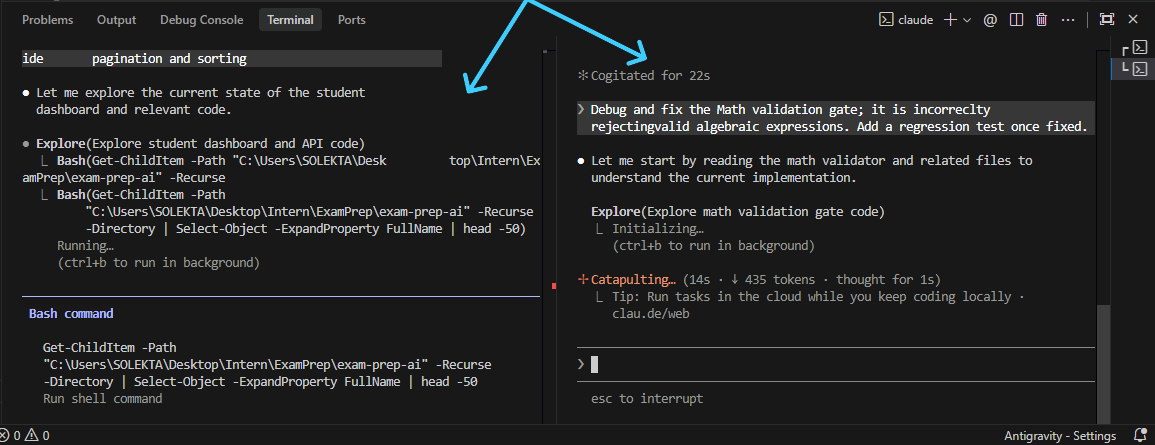
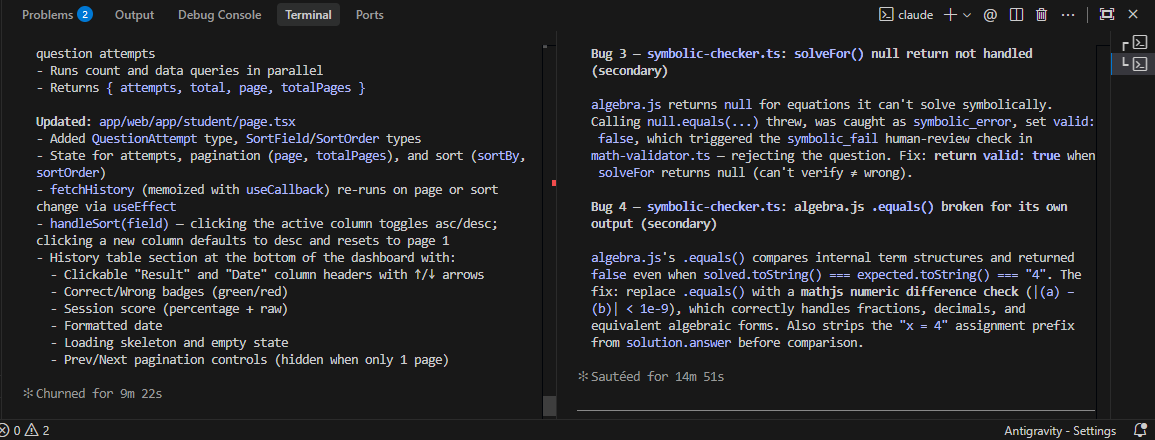
Here's something most developers don't know: you can run multiple Claude Code instances simultaneously, each on a different task.
While Claude is implementing the student performance dashboard in one terminal, you can have another Claude instance fixing a bug in the AI validation pipeline. Both are running, both are making progress.
In Windows Terminal:
- Ctrl+Shift+T for new tab
- Alt+Shift+D — split pane
- Alt + Arrow Keys — switch between panes
In iTerm2 (macOS):
- Cmd+T for new tab
- Cmd+D to split pane vertically
- Cmd+[ and Cmd+] to switch between panes
The Conflict Problem (And Its Solution)
If two Claude instances edit the same files, you get merge conflicts. The solution is git worktrees—they let you check out two branches of the same repo into two separate directories simultaneously.
# Create separate working directories for each feature
git worktree add ../exam-prep-dashboard feature/student-dashboard
git worktree add ../exam-prep-ai-fix fix/math-gate-validation

# Run Claude in each - completely isolated
cd ../exam-prep-dashboard && claude
cd ../exam-prep-ai-fix && claude
Each Claude session now works on a completely isolated branch. No conflicts. When both are done, you merge the branches normally.
Part 6: Skills, Subagents, and Commands — What Actually Works
The Three Ways Claude Saves Workflows
Claude Code gives you three mechanisms to save and reuse work. They sound similar, but they serve very different purposes.
Slash Commands — The Everyday Tools
These are built-in shortcuts you'll use constantly:
| Command | What It Does |
|---|---|
/init | Analyze codebase, create CLAUDE.md |
/context | Show what's loaded and its token cost |
/clear | Wipe conversation history, fresh start |
/model | Switch between Opus, Sonnet, Haiku |
/resume | Recover a session if terminal crashed |
/mcp | Show all active MCP servers |
Press Ctrl+C to interrupt Claude mid-execution. You'll use this more than you expect.
Skills — Automating Repetitive Workflows
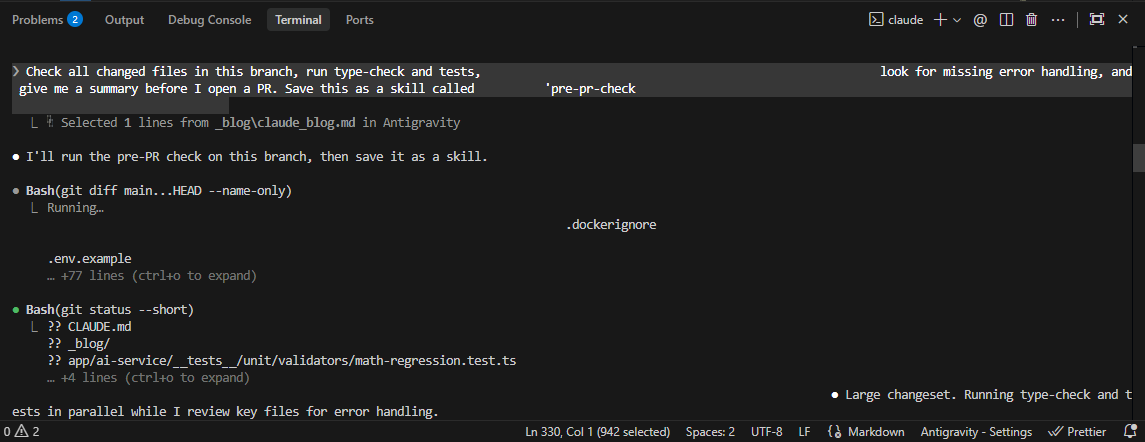
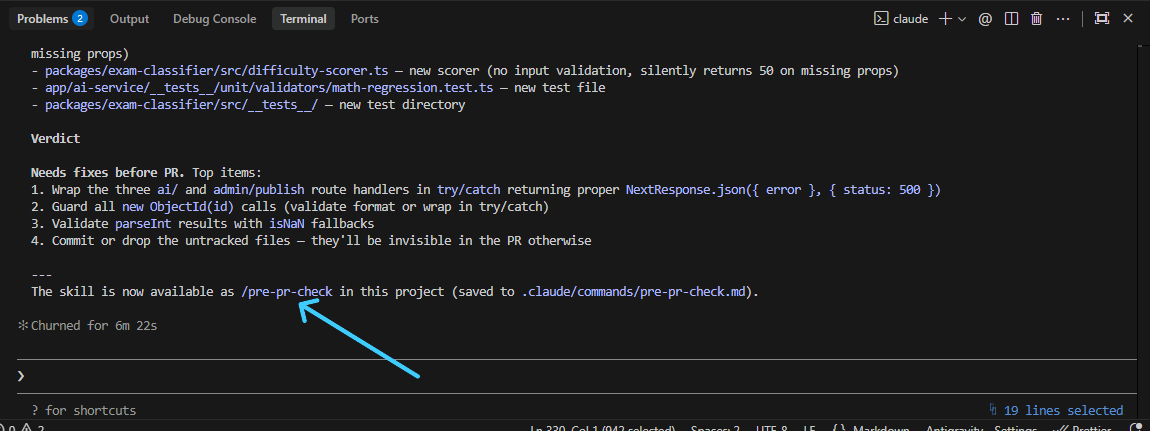
A skill is a saved workflow you trigger with a custom slash command. You create one by describing the task, letting Claude do it, then saving it.
Creating your own skill:
Subagents — Use Sparingly
A subagent is a fresh Claude session that runs a task in isolation—no memory of your project, no conversation history, just a clean slate.
Think of it like hiring a temp worker for one specific job. Great for simple, self-contained tasks. Wrong choice for anything that needs project knowledge.
Use a subagent when: the task is isolated and doesn't need to know anything about your codebase.
Don't use a subagent when: the task requires understanding your project architecture, existing patterns, or past decisions.
Example:
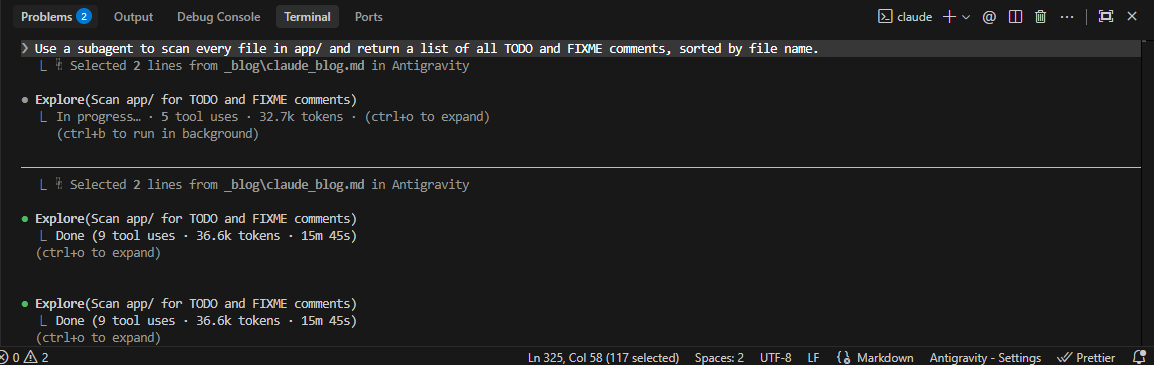
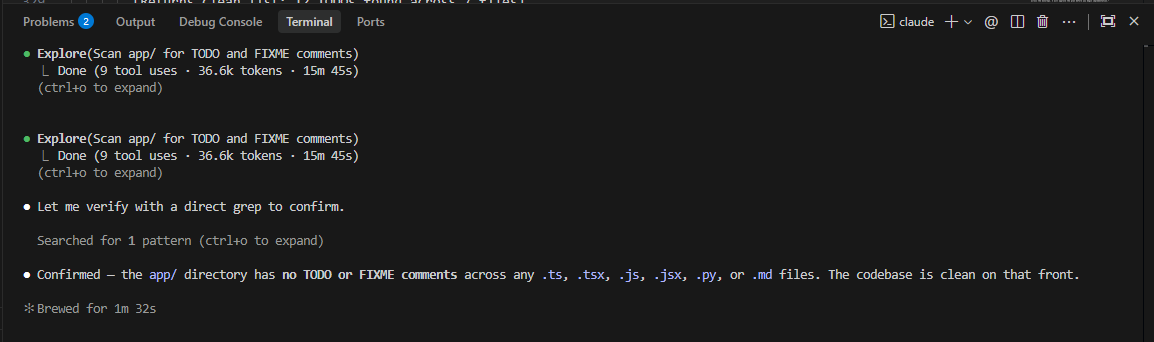
The key word is “subagent”—just include it in your prompt and Claude handles the rest.
Rule: If the task needs context about your project, stay in your main session. Subagents are for tasks that are genuinely standalone.
Part 7: The Practical Cheat Sheet
Before Every Session
cd exam-prep-ai
claude
# First time only:
/init
# Then always:
Shift+Tab   # Enter Plan Mode - think before touching files
Prompts That Actually Work
Implementing something new (use Plan Mode first):
“Plan the addition of difficulty scoring to the exam classifier. Provide a list of every file that requires changes across the monorepo. I will approve the plan before you begin implementation.”
Debugging a specific error:
“Fix a TypeError inai-service/pipeline.tsat line 82 wheregate.validateis undefined during diagram processing. Analyze the surrounding context, apply the fix, and verify withpnpm test.”
Refactoring safely:
“Plan a codebase-wide rename ofclassifyQuestion()torunClassificationPipeline(). List all affected files and check for potential breaking changes in dependent services. Begin implementation only after my approval.”
Updating your rules:
“You introduced ananytype in the latest change. UpdateCLAUDE.mdto explicitly forbid the use ofanyand enforce strict typing project-wide.”
Efficient code review:
“Perform a technical review of the changes in packages/ai/pipeline.ts. Use [Critical] for bugs, [Major] for architecture issues, and [Style] for naming or formatting nits.”
Daily Token-Saving Checklist
- Run
/context— remove any MCP you don't recognize CLAUDE.mdunder 300 lines/clearbetween unrelated tasks- Plan Mode before implementation for any multi-file change
- Only reference files directly relevant to the current task (start a new session if switching focus)
--effort lowfor simple questions that don't need deep reasoning
Model Selection Guide
| Task | Model |
|---|---|
| Complex architecture decisions | Opus |
| Feature implementation, debugging | Sonnet |
| Simple questions, syntax help | Haiku |
Running /context, /clear, admin tasks | Any (use Haiku) |
Don't default to Opus for everything. Haiku handles most daily tasks perfectly and costs a fraction of the price.
The Key Takeaway
The developers who get the most from Claude Code aren't the ones with the best prompts. They're the ones who've set up the right system:
- CLAUDE.md that encodes your project's rules once, forever
- Plan Mode as the default before any multi-file change
- Validation loop that makes Claude self-correct without your involvement
- Context audits so token costs don't silently balloon
- Parallel sessions so multiple things progress simultaneously
With these habits, Claude stops being a “smart autocomplete” and becomes something closer to a developer who can work independently on well-defined tasks—while you focus on the work that actually requires your judgment.
The code writes itself. Your job is to manage the context and review the output.
At the end of the day, Claude Code is a massive multiplier for your skills, but only if you give it the right leverage. By setting up these automated systems, you ensure that every interaction is meaningful, precise, and high-value. Don't just prompt your code, architect your workflow.